 XToGo
XToGoThree apps · One key
Your App Store, in your pocket.
XToGo is a family of apps for people who ship on Apple's platforms. What your builds are doing, what people are saying, and what any of it earned — on whichever device you happen to be holding.
Each app is free to download, with a demo mode you can look around in before connecting anything. One App Store Connect key signs you into all three.

The family
Three apps that already know who you are.
They ask App Store Connect the same question — what happened to my apps? — and each answers a different part of it. Install a second one and there is nothing to set up: the key you already added is the key it uses.
App CI
Xcode Cloud, in your pocket.
Products, workflows, runs, issues, tests, artifacts and the whole log — and a button to start a build.
What it does
App Reviews
Every review, one inbox.
Every star of every app you ship, by storefront and by rating, with the reply typed right where you read it.
What it does
App Finances
What it earned, at a glance.
Proceeds, downloads, refunds and trends — by app and by territory, on the phone and on your wrist.
What it doesAdd your key once
All three read App Store Connect with a key you create, and they share one account list between them. Add a team in any of them and the others are signed in — on that device, and through iCloud on your other ones.
App CI
Every build, without opening a laptop.
Apps, then workflows, then runs, then the steps inside them — down to the line of the file that broke. A build that is still going keeps itself up to date while you watch.


App Reviews
Every review you were going to read later.
One inbox across every app you ship, newest first, with a dot beside the ones still waiting on you — the way Mail marks unread. Swipe to reply without leaving the list.


App Finances
What yesterday was worth.
Proceeds and downloads over the last week, month, quarter or year, with the change against the window before — and a trend you can read at arm's length.


Beyond the phone
The same apps, with more room.
Not a phone app in a window — real screens for the Mac's width, the iPad's proportions, the watch's glance and the television across the room.
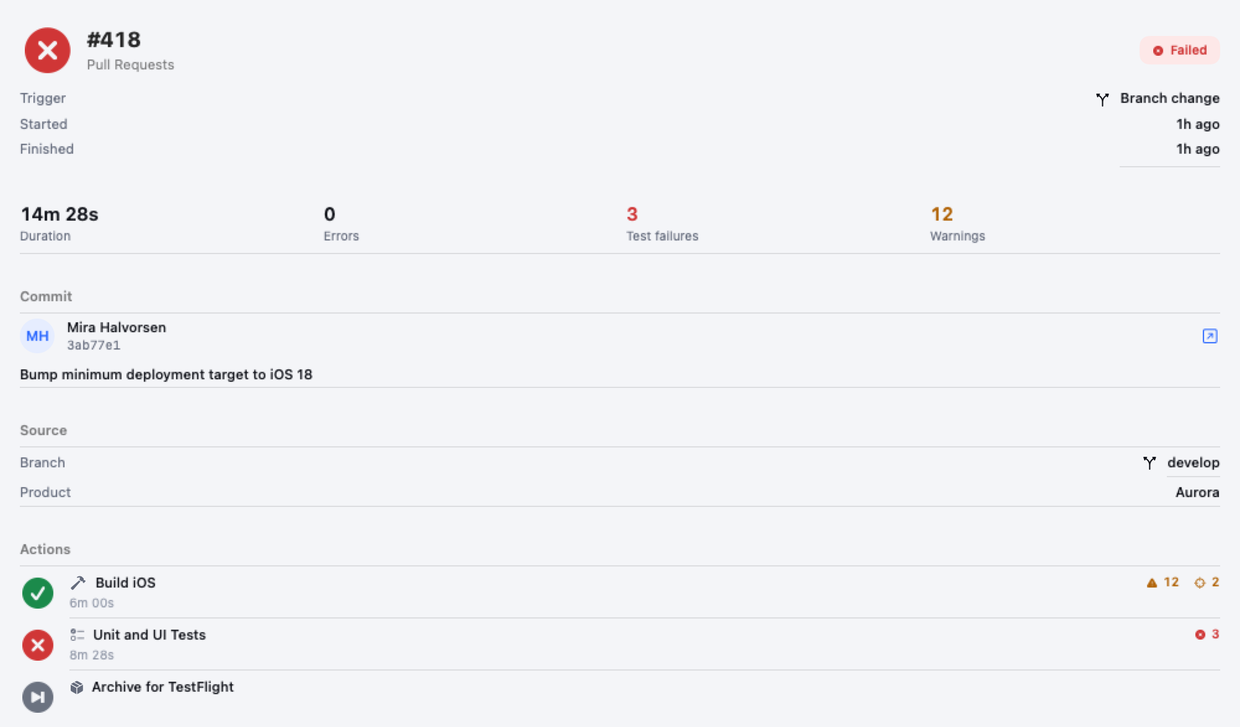
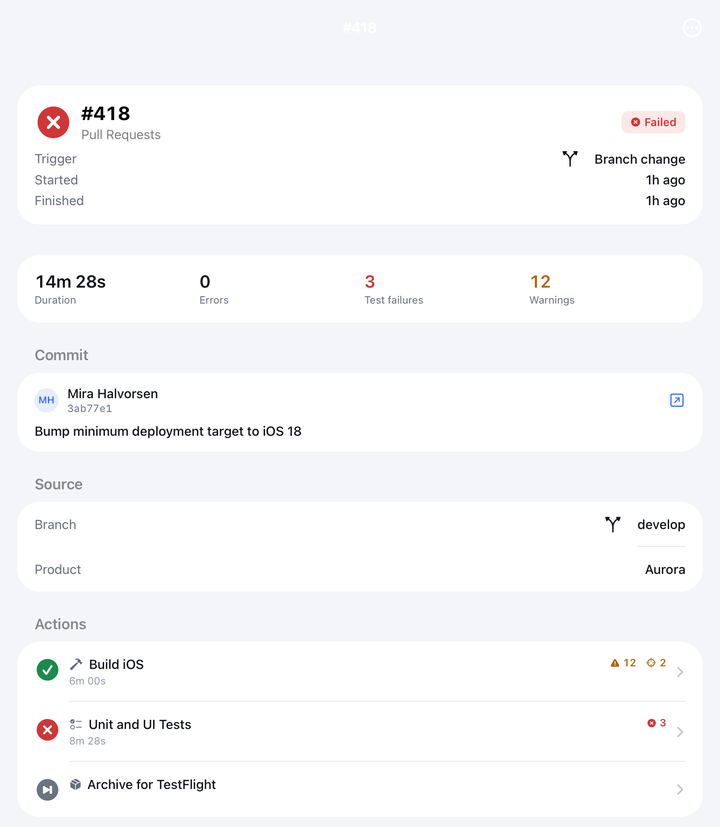
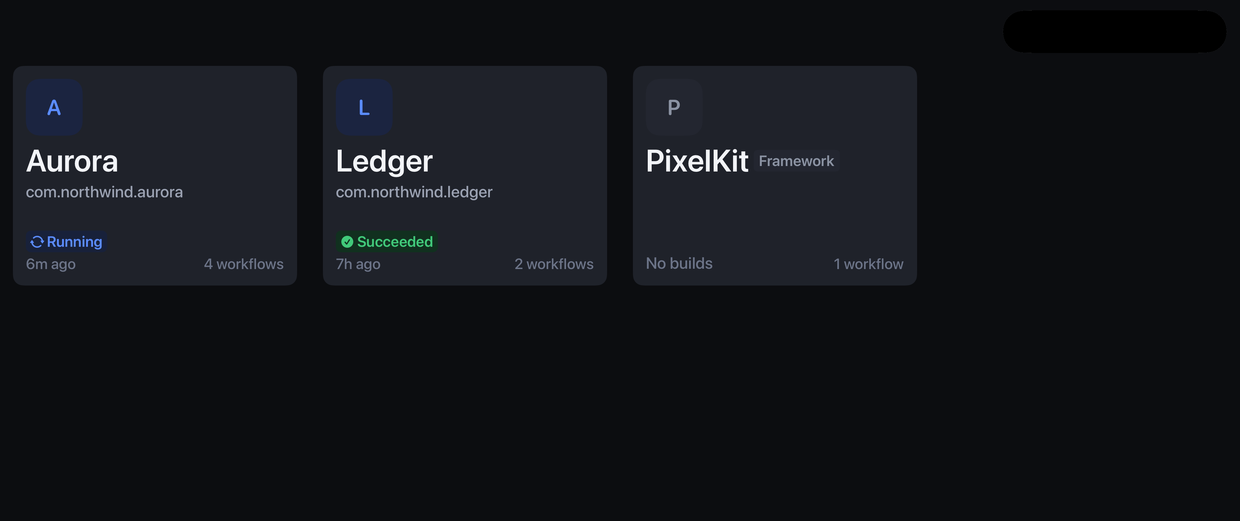
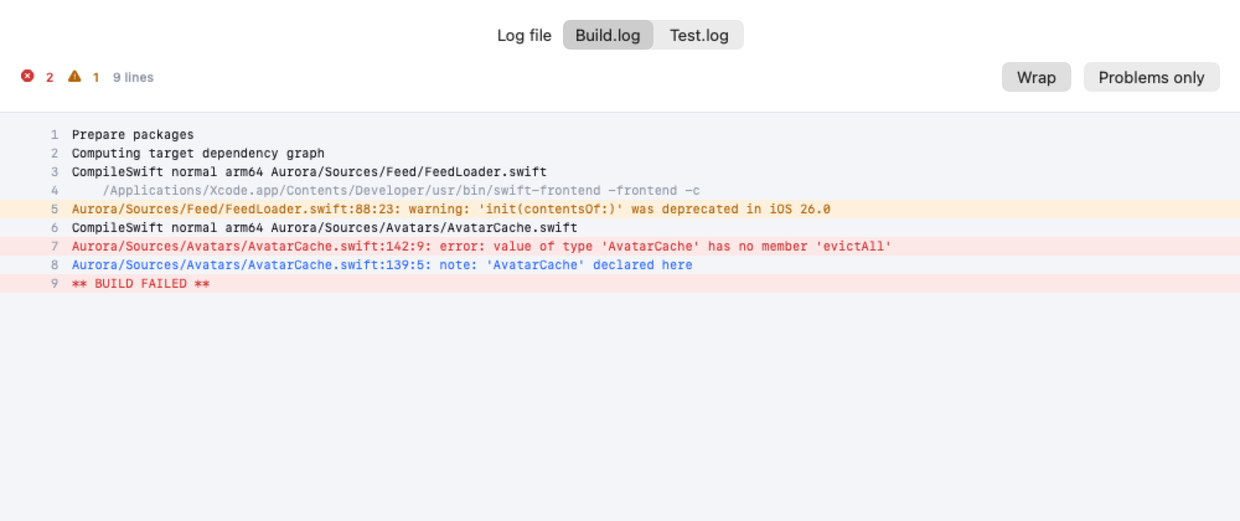
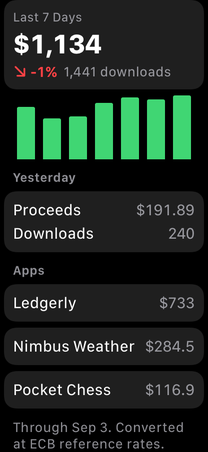
App CI runs on iPhone, iPad and Mac, with screens built for Apple TV and Apple Vision Pro as well; App Reviews shares that reach; App Finances is iPhone, iPad and Apple Watch. Each app's App Store page is the last word on where it is available today.
Before you download
Reasonable questions
Do I have to install all three?
No. Each one stands on its own and none of them needs the others to work. Installing a second is simply less work than the first, because the key is already there.
How do I sign in?
With a key from App Store Connect rather than your Apple Account. That's the only way Apple lets an app reach this data at all, so it isn't a choice XToGo made. Creating one takes a couple of minutes, and the support page walks through it.
Does one key really cover all three?
One key covers whatever its role allows. Reading builds, reviews and sales are separate permissions in App Store Connect, so a key made for Xcode Cloud may read builds but not sales. The support page lists the role each app needs, and every app says plainly when the key it has isn't allowed to do what you asked.
What can these apps do to my account?
Exactly as much as the key allows, and no more. A read-only key gets you everything except starting builds and posting replies.
Can I use more than one team?
Yes. Add each team once and switch between them from the account menu; switching changes every screen at once, in every one of the apps you have installed. The free tiers hold one team.
What do they cost?
Each app is free, and each free tier is meant to be usable on its own. App CI Pro is monthly, yearly or a one-off lifetime purchase, and adds every app on the team, more teams, starting builds, build notifications and the Live Activity. App Reviews and App Finances each sell a single yearly subscription. The App Store shows the price in your own currency; there is no bundle, so you buy only the ones you use.
Can I look before connecting anything?
Yes — every app has a demo mode running on sample data, with nothing held back and no network needed. The screenshots on this page are that sample data.
Do they work offline?
Not for live data: your builds, reviews and reports live with Apple, so seeing them needs a connection. Demo mode works with no network at all.
Shipping doesn't stop when you leave your desk.
Builds break, reviews arrive, and yesterday's numbers land at eight in the morning. Put all three on the device you actually have with you.